Showing posts with label s. Show all posts

Thursday, November 20, 2014

Samsung Galaxy S 4 hard reset sgs4 reset i9500 resetting gt i9500 i9505 gt i9505 code


Samsung Galaxy S の4 hard reset :- by >wzmobile.asia<
Fast Reset  the device {press and hold POWER switch  for 9-11 second}
Unlock samsung Galaxy S4 using hard reset
samsung s4 hard reset  or のreset Galaxy S4 PRESS AND HOLD VOLUME UP key + Home switch  + Power switch 

Press Power key the phone on vibrate Waityou see for Android logo then release 
all the switchのの and keys.Select Wipe data/Factory reset with VOLUME DOWN. 
press Power key [right hand-side]Select YES -- delete all user dataŽwith VOLUME DOWN 
and then press Power After format. press Power key again to reboot phone. 
[select reboot system now]unlock i9500 galaxy samsung cell phone
Read More..

Thursday, November 6, 2014

Hard Reset For Samsung Galaxy S i9000

How to Hard Reset Your Samsung Galaxy S

When You Have To Hard Reset Your Samsung Galaxy S?

You Can Apply Hard Reset In Many Cases We Will Tell You Some Example
* Forgotten Pattern Lock
* Forgotten Phone Lock
* Forgotten User Code
* If Your Phone Seems Frozen Due To Any Cases. 

Take Care oi These Factors Before You Reset Your I9000

* Please Backup Your Data Using any Backup Software
* Please Maintain 90% Battery Charge  

How To Hard Reset Your Samsung Galaxy S

hard
* Switch Off Your Samsung Galaxy
* Take Out Your Sim And Memmory Card
* Press And Hold  Volume Up Key  +  Home Key    +  Then Power On Your Phone
* Hold Pressing Keys Untill The Second Logo Appears
* When Scond Logo . Release All Keys
* Then You Will Get Factory Reset Menu
* Select Wipe Data/ Factory Reset Option . Scroll Using Volume Key . Then Confirm Using Power Key       (Home Key)
* By Select Yes Delete All User Data Using Volume Down Key . Press Power key to confirm.
* Wait Some Seconds. Then Select Reboot System Now Option And Confirm
* Now Your Phone Will Restarted. After Completing The Hard Reset Proses
* Done !
Read More..

Tuesday, September 23, 2014

Root Samsung Galaxy S GT I9000


Today, we bring up the method to root Samsung Galaxy S GT I9000 as well as process to install CWM Recovery, which is essential to install Custom ROMs. So, in this article we will show you the most simplest way to root Samsung Galaxy S GT-I9000. As you will traverse below, we will surely guide you through the complete process on to how to root Samsung Galaxy S GT-I9000. But, before that please read the prerequisite, disclaimer and other important notes. Let’s start...

Prerequisite:

1. Make sure your mobile should possess 70 to 80% battery
2. Enable USB debugging mode (Menu (app drawer) > Settings > Manage Applications > Development > USB Debugging – check box)
3. Ensure that you have backed up your all important data.
4. Install Root Samsung Galaxy S GT-I9000 USB drivers. (Download USB drivers or download Samsung Kies (drivers included))

How to root Samsung Galaxy S GT-I9000 and Install CWM Recovery

Step 1: To root Samsung Galaxy S GT-I9000, first you have to download “CF-Root“, as per your Android 2.3.6 Gingerbread Firmware Baseband Version from Below: (To check baseband version: Go to Settings > About > Baseband Version)
After downloading CF-Root File, extract it on desktop.
Step 2: Download “Odin” extract it on the desktop.
Step 3: Switch Off your phone, take out the battery and insert it back. Now boot your phone into Download Mode by pressing and holding the Volume Down + Home button together, and then press the Power button till you see the Android Construction logo. Once again press Power/Volume Up button to confirm.
Step 4: Open “Odin.exe” (from extracted folder) and connect your phone via USB cable with your computer in download mode. If your phone is connected successfully the one of the ID:COM boxes will turn yellow.
Step 5: Click on “PDA” button and select file “cf-root-xx_oxa_xxx-xx.x-cwm3rfs.tar” (from extracted folder).
Step 6: Please make sure that only F. Reset Time and Auto Reboot options are checked on Odin.
Step 7: Now, click on the “Start button” on Odin to start the installation process. Installation will take a few minutes to complete so please wait for the complete process.
Step 8: Finally, when the installation process is completed successfully you will see the “PASS” message on Odin and then your device will reboot automatically.
Read More..

Monday, September 22, 2014

How to Set Up Your Facebook Account on Sony Xperia S

We simply cant get enough of Facebook. And this social networking giant made sure that they still exist even on your smartphones. Now you can set up a Facebook Account right on your Xperia phone which will give you easy navigation on Facebook. Heres how you can set up your Facebook account to work on your Xperia device.

1. On your devices homeLcd tap on
2. Then tap on Settings and go to Accounts & sync.
3. The Active auto-sync checkbox should be marked to make sure that applications can synchronise data automatically.

4. Tap on Add Account and then Facebook.
5. Just follow the registration wizard to create an account or you can sign in if you already have one.
6. Once youre done, select a synchronisation option for your account and tap on Finish.
Your Facebook account is now set up to work on your phone.
Read More..

Monday, September 8, 2014

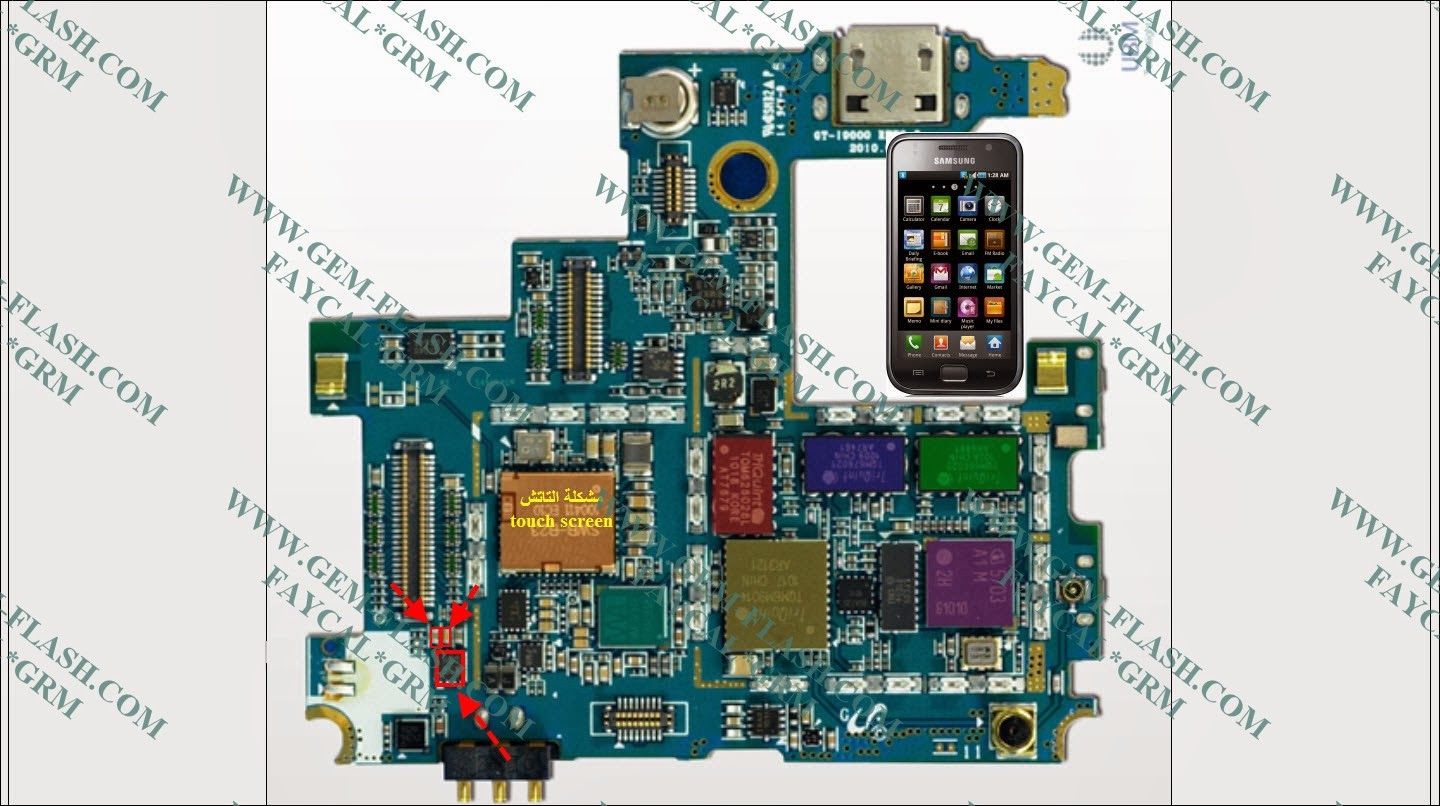
Samsung Galaxy S i9000 touch screen not working Solution

Samsung Galaxy S i9000 touch Lcd not working Solution,Samsung Galaxy S i9000 touch Lcd not working Solution Ways Jumper,Samsung Galaxy S i9000 touch Lcd not working Solution Repair,Samsung Galaxy S i9000 touch Lcd no Response working Solution,Samsung Galaxy S i9000 touch Lcd not working Problem Guide Solution Step By Step Procedure Here.
Read More..

Wednesday, August 27, 2014

Samsung Galaxy S i9000 Bluetooth Not Working fix problem

Samsung Galaxy S i9000 Bluetooth Not Working How to Fix problem,Samsung Galaxy S i9000 Bluetooth searching Failed How to Fix problem,Samsung Galaxy S i9000 Bluetooth Not active Working How to Fix problem,Samsung Galaxy S i9000 Bluetooth Not open Working How to Fix problem,Samsung Galaxy S i9000 Bluetooth open to hang problem Not Working How to Fix problem,Samsung Galaxy S i9000 Bluetooth Not Working How to Fix problem ways repair Guide Step by Step Procedure Here.
Read More..

Sunday, August 17, 2014

Samsung Galaxy S III SCH R530 Factory data reset

Samsung
Samsung Galaxy S III SCH-R530 Factory data reset
Performing factory data reset Samsung Galaxy S III SCH-R530 via Settings Menu:

Performing factory reset ( master reset or hard reset )


  1. Touch Menu from home screen
  2. Tap Settings
  3. Tap Backup and reset
  4. Tap Personal data,
  5. Tap Factory data reset
  6. Tap Reset phone
  7. Tap Erase everything
  8. Tap Done

Warning! All data will be erased from device memory, including system and application data, settings and downloaded applications. Back up your important data.  The device will restore to factory settings.

If your phone hangs or does not responding, Press and hold power key about 10 seconds.  It will rebooting automatically.  Or remove and re insert the battery and SIM Card.
Read More..