Showing posts with label xperia. Show all posts
Showing posts with label xperia. Show all posts
Monday, September 22, 2014
How to Set Up Your Facebook Account on Sony Xperia S
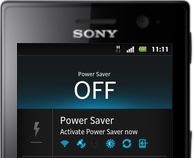
1. On your devices homeLcd tap on

2. Then tap on Settings and go to Accounts & sync.
3. The Active auto-sync checkbox should be marked to make sure that applications can synchronise data automatically.
4. Tap on Add Account and then Facebook.
5. Just follow the registration wizard to create an account or you can sign in if you already have one.
6. Once youre done, select a synchronisation option for your account and tap on Finish.
Your Facebook account is now set up to work on your phone.

Saturday, September 20, 2014
How to Hard Reset Sony Xperia M2 Using Buttons
1. Turned off your phone, then press and hold the Volume Up and Volume Down buttons.
2. Then press and release the Power button (just keep on holding the volume buttons). There should a menu will appear on your phone.
3. Press the Volume down button to navigate to the Recovery option. Press the Volume Up to select (if that doesnt work, use the Power button to select).
4. An Android logo will appear. Press the Volume Down and Volume Up button together and a recovery menu should appear. Use the Volume buttons to move to the Wipe data/Factory reset option and then press Power to select.
5. Use the Volume Down key to choose Yes and press the Power button again to select.
Read More..
2. Then press and release the Power button (just keep on holding the volume buttons). There should a menu will appear on your phone.
3. Press the Volume down button to navigate to the Recovery option. Press the Volume Up to select (if that doesnt work, use the Power button to select).
4. An Android logo will appear. Press the Volume Down and Volume Up button together and a recovery menu should appear. Use the Volume buttons to move to the Wipe data/Factory reset option and then press Power to select.
5. Use the Volume Down key to choose Yes and press the Power button again to select.
Thursday, September 18, 2014
How to Start Conference Calls on Sony Xperia Z
To start a conference call
1. During an ongoing call, tap
2. Dial the number of the second participant and tap Call. After the second participant answers, the first participant is put on hold.
3. Tap to add the second participant to the conference call.
4. Repeat steps 1 to 3 to add more call participants.
To have a private conversation with a conference call participant
1. During an ongoing conference call, tap {0} participants.
2. Tap the telephone number of the participant with whom you want to talk privately.
3. To end the private conversation and return to the conference call, tap.
To release a participant from a conference call
1. During an ongoing conference call, tap the button showing the number of participants. For example, tap 3 participants if there are three participants.
2. Tap next to the participant you want to release.
To end a conference call
• During the conference call, tap End conference call.
Read More..
1. During an ongoing call, tap
2. Dial the number of the second participant and tap Call. After the second participant answers, the first participant is put on hold.
3. Tap
to add the second participant to the conference call.4. Repeat steps 1 to 3 to add more call participants.
To have a private conversation with a conference call participant
1. During an ongoing conference call, tap {0} participants.
2. Tap the telephone number of the participant with whom you want to talk privately.
3. To end the private conversation and return to the conference call, tap
.To release a participant from a conference call
1. During an ongoing conference call, tap the button showing the number of participants. For example, tap 3 participants if there are three participants.
2. Tap
next to the participant you want to release.To end a conference call
• During the conference call, tap End conference call.
Tuesday, September 2, 2014
CWM Based Recovery 6 0 4 6 Touch Recovery for Xperia Z2 How To Guide
CWM-Based Recovery 6.0.4.6 Touch Recovery for Xperia Z2 How To Guide
info:This Recovery is built from CWM 6.0.4.6 sources!
I dont have this device with me and but would love to have one!...
all the testing was done remotely on users devices... thanks to @yeeson for testing on his Z2 !!![ PROOF ]![CWM-Based]()
[ credits / special thanks ]
I dont have this device with me and but would love to have one!...
all the testing was done remotely on users devices... thanks to @yeeson for testing on his Z2 !!![ PROOF ]
[ credits / special thanks ]
- Koush - for the brilliant work & coding on CWM recovery
- CyanogenMod and FreeXperia Team (especially jerpelea) for too many things *
- special thanks to @yeeson for helping out with testing and risking his devices for the sake of development!!! and NO, his phone was NOT damaged during testing
- ME for creating this for u guys!

[ Requirements ]
- Bootloader unlocked
- working fastboot
- STOCK ROM FW:
- 4.4.2
- 17.1.A.2.36 - v01
- 4.4.2
[ features ]
- standard CWM recovery 6.0.4.6 - TOUCH RECOVERY!
- kernel is insecure (ro.secure=0)
- adb debugging is enabled by default in OS
- TIP: if u are experiencing very slow backup in CWM do this
[ WARNING ]
for flashing this kernel you WILL NEED TO UNLOCK BOOTLOADER! Check this thread for more info (same steps as Xperia Z1 are used for Xperia Z2)
UNLOCKING BOOTLOADER WITHOUT TA BACKUP WILL LEAD TO IRREVERSIBLE LOSS OF DRM KEYS!!!
AND YES CAMERA STILL WORKS AFTER UNLOCKING BOOTLOADER!!!
[ known issues ]
for flashing this kernel you WILL NEED TO UNLOCK BOOTLOADER! Check this thread for more info (same steps as Xperia Z1 are used for Xperia Z2)
UNLOCKING BOOTLOADER WITHOUT TA BACKUP WILL LEAD TO IRREVERSIBLE LOSS OF DRM KEYS!!!
AND YES CAMERA STILL WORKS AFTER UNLOCKING BOOTLOADER!!!
[ known issues ]
- adb is not working in recovery (can be fixed later)
[ how to flash this kernel ] (via fastboot)
- download the kernel image
- save the boot.img to the folder containing fastboot binary
- flash the boot.img using fastboot:Code:reboot from fastboot Code:
fastboot flash boot boot.img
fastboot reboot
- the device should now start booting
- enjoy!
when you see the Sony logo and the LED light turns pink/amber/orange keep tapping/pressing VOLUME UP key
[ how to Root ]
for instructions on how to root please check this post
[ sources ]
https://github.com/DooMLoRD/android_device_sony_honami
for now recovery is same is same as honami
[ donations ]
Please do consider donating as I plan to get this device!
if u feel that this work has helped u OR u think that the work i put into making this is worthy of donations, then click on the following link for buying me some coffee/beer/etc

PAYPAL DONATION LINK
OR
you can buy one of my awesome apps from Play Store!
[ download links ]
PLEASE DO NOT MIRROR, REDISTRIBUTE, REPACK MY FILES
NEW:
Advance Stock Kernel with Recovery v01 (FW:17.1.A.2.36}
MD5HASH: 6e0c418d299780bd0ac74e69ff46a199
Tuesday, August 26, 2014
How to Add a Geotag on a Photo on Sony Xperia Z1
Adding a location to those photos somehow adds relevance and it gives you that flashback of memories when you view those nicely captured moments. Well, this feature is not new any longer since its been there online and you often use them on photo-filtered websites. On your device, you can now add geotags on your photos right on your handset. Heres how you can add geotag on your photos.
1. Open your photo gallery on your device.
2. When youre viewing a photo, just tap the screen and the toolbars will display.
3. Now tap to open the map screen.
4. Find and tap the desired location to put the map on the photo.
5. To adjust the location of the photo, just tap the location on the map to where you want to move the photo.
6. Tap OK when youre done and to save the geotag. You can then return to the photo viewer screen.
Read More..
1. Open your photo gallery on your device.
2. When youre viewing a photo, just tap the screen and the toolbars will display.
3. Now tap
to open the map screen.4. Find and tap the desired location to put the map on the photo.
5. To adjust the location of the photo, just tap the location on the map to where you want to move the photo.
6. Tap OK when youre done and to save the geotag. You can then return to the photo viewer screen.
Tuesday, August 12, 2014

Subscribe to:
Posts (Atom)
